
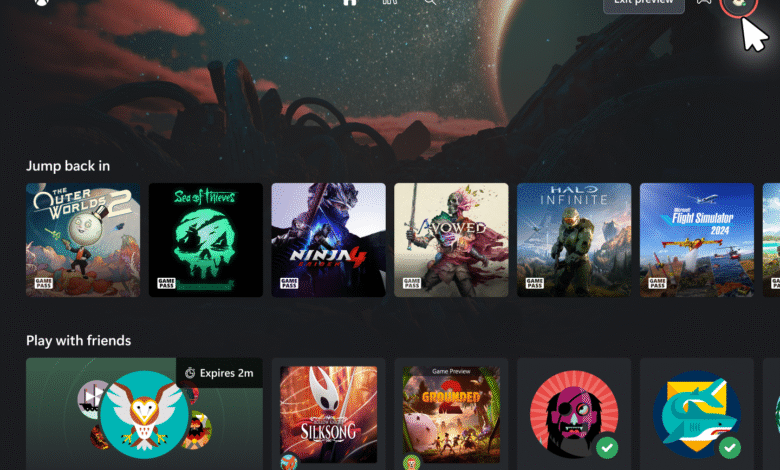
Starting today, we’re testing a refreshed web experience for Xbox Cloud Gaming that lays the foundation for accelerating our ability to build new experiences for players. This preview is a first look at our new web interface on your browser and lets you try the updated design and product flow before it is rolled out broadly.
What to expect:
Players who opt in to this preview will see some changes to their experience including updated navigation features and a refreshed look and feel. As this is a preview, some functions may not yet be available or may behave differently than the current web experience. We will continue iterating during the preview period and changes may be made over time.
How to access:
- Go to xbox.com/play in your compatible browser and sign in with your Xbox Account
- Once logged in on xbox.com/play, go to Settings and ensure the Preview Features toggle is set.
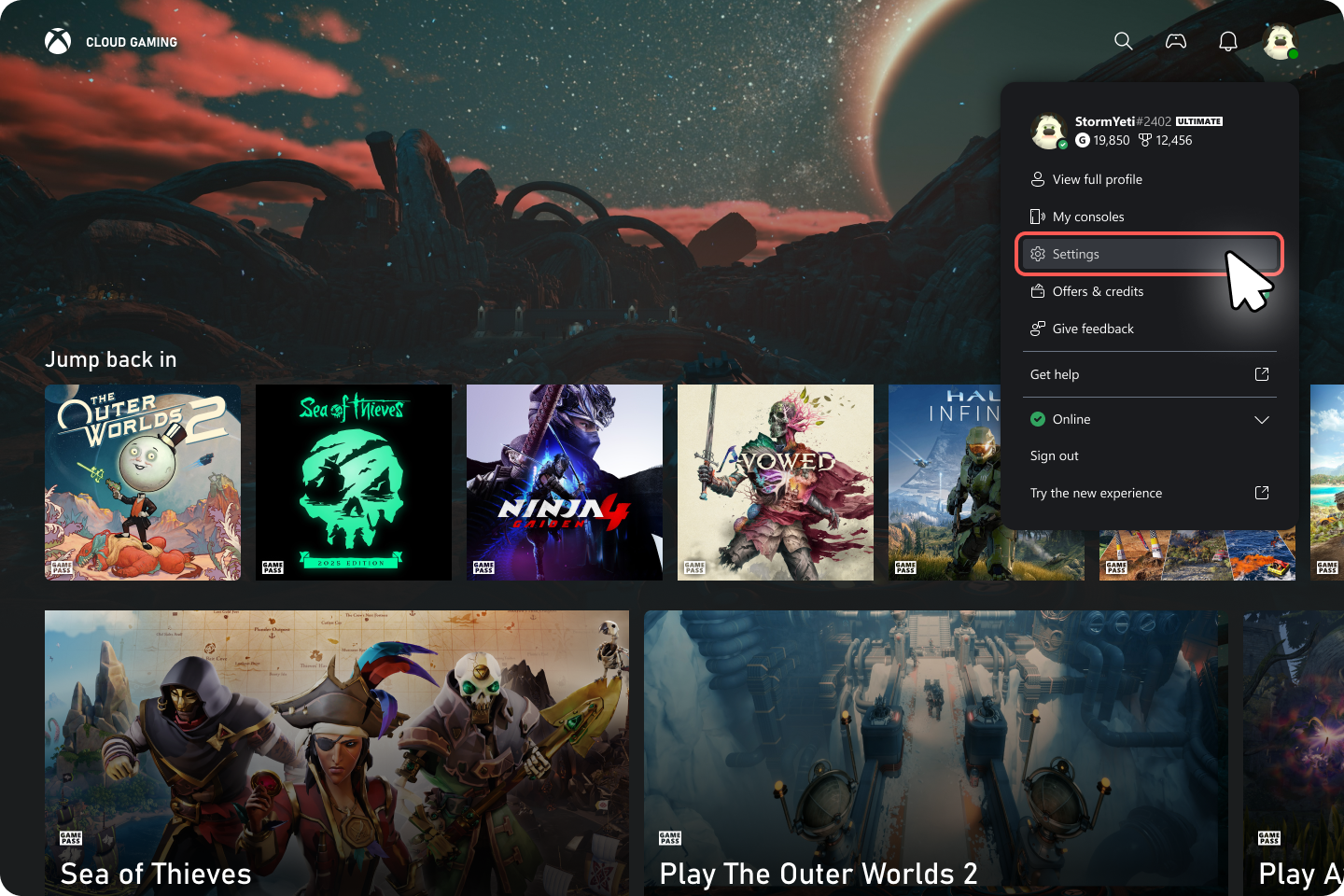
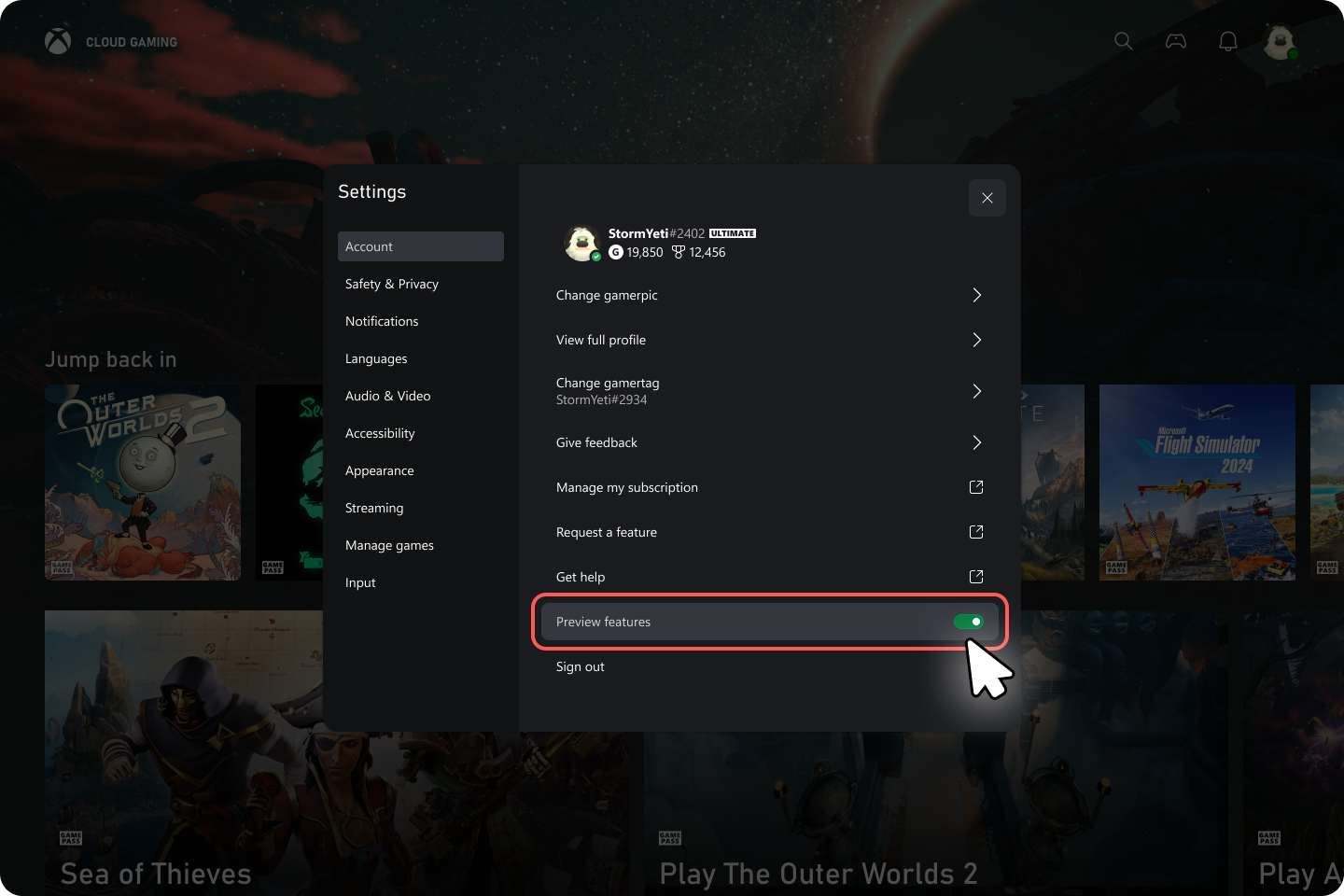
- Launch into our new Experience by either:
- Following the prompts and links to the new experience once you’ve enabled the Preview Features toggle.
- Note: After you the enable the toggle, it may take up to 10 minutes for the prompts and links to appear. You can try logging out and back in to expedite this or perform the other option listed below.
- Following the prompts and links to the new experience once you’ve enabled the Preview Features toggle.
- Enter play.xbox.com into your browser.
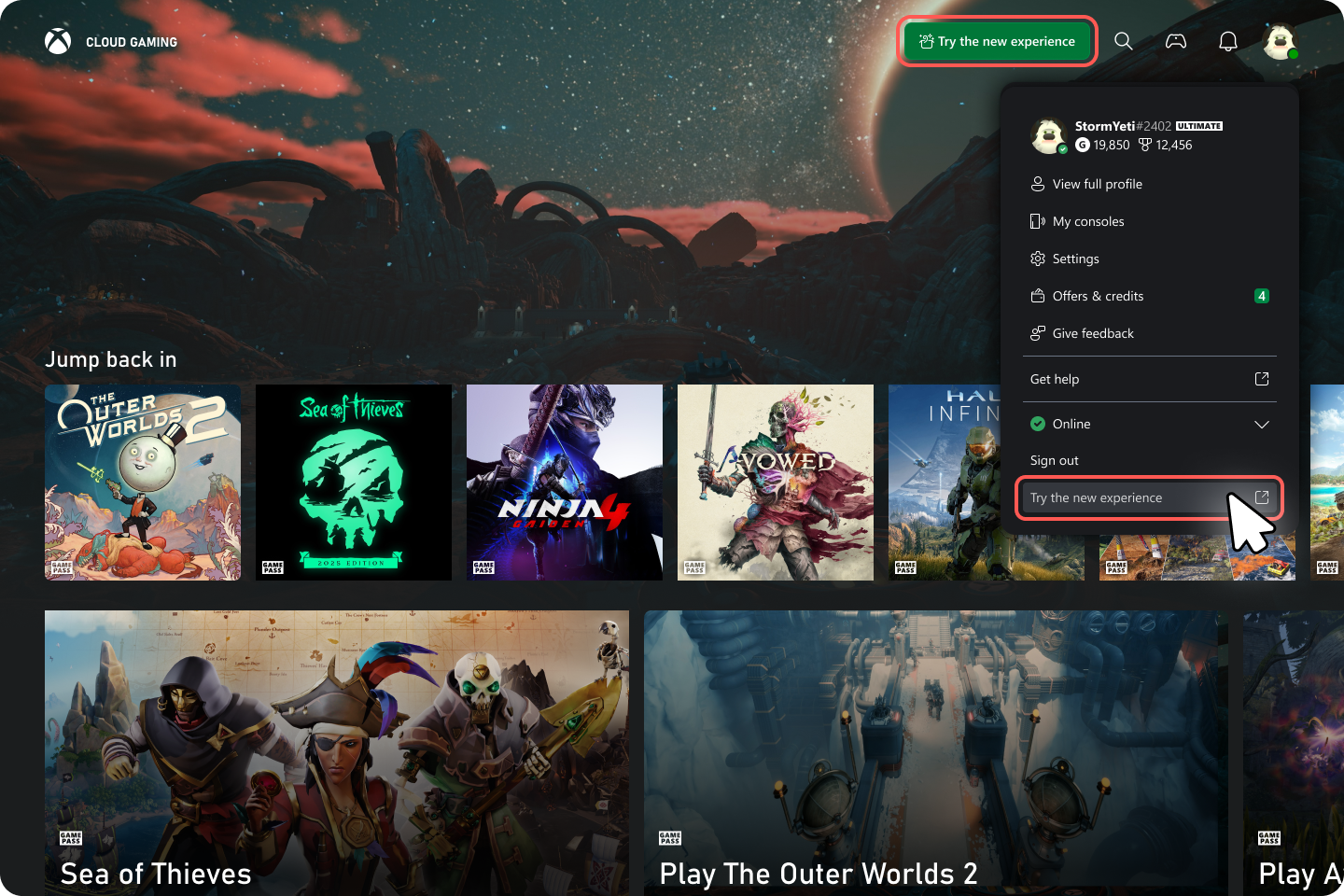
Note: You can always return to using the existing experience by going back to xbox.com/play.
Why your feedback matters:
This preview helps us validate the new web platform and refine the experience for everyone. If you encounter issues or have suggestions, please share them through the Feedback feature in the preview experience. Your reports will directly influence what we improve next.
How to provide feedback
On play.xbox.com, you can file feedback within the experience, accessible from two different entry points:
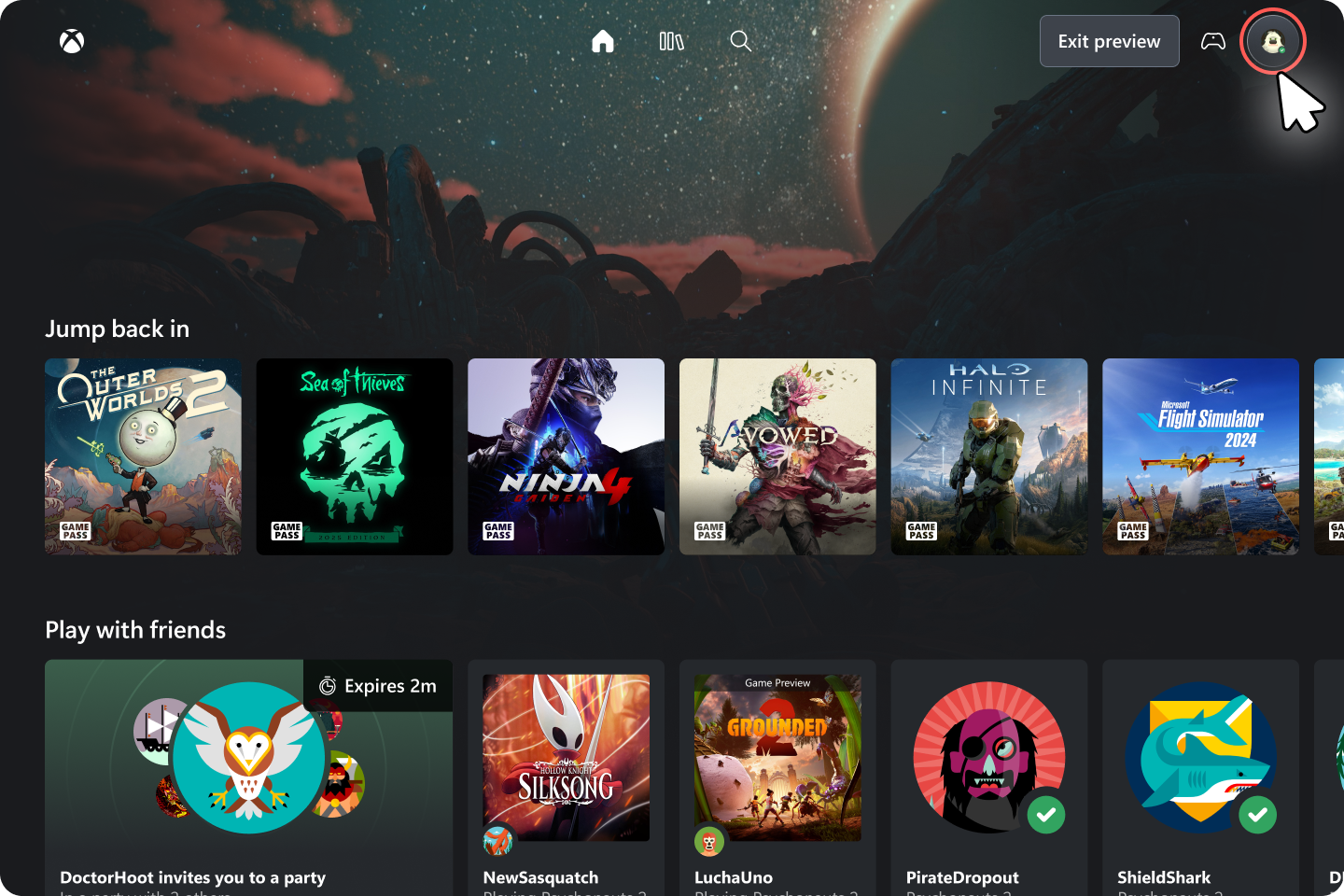
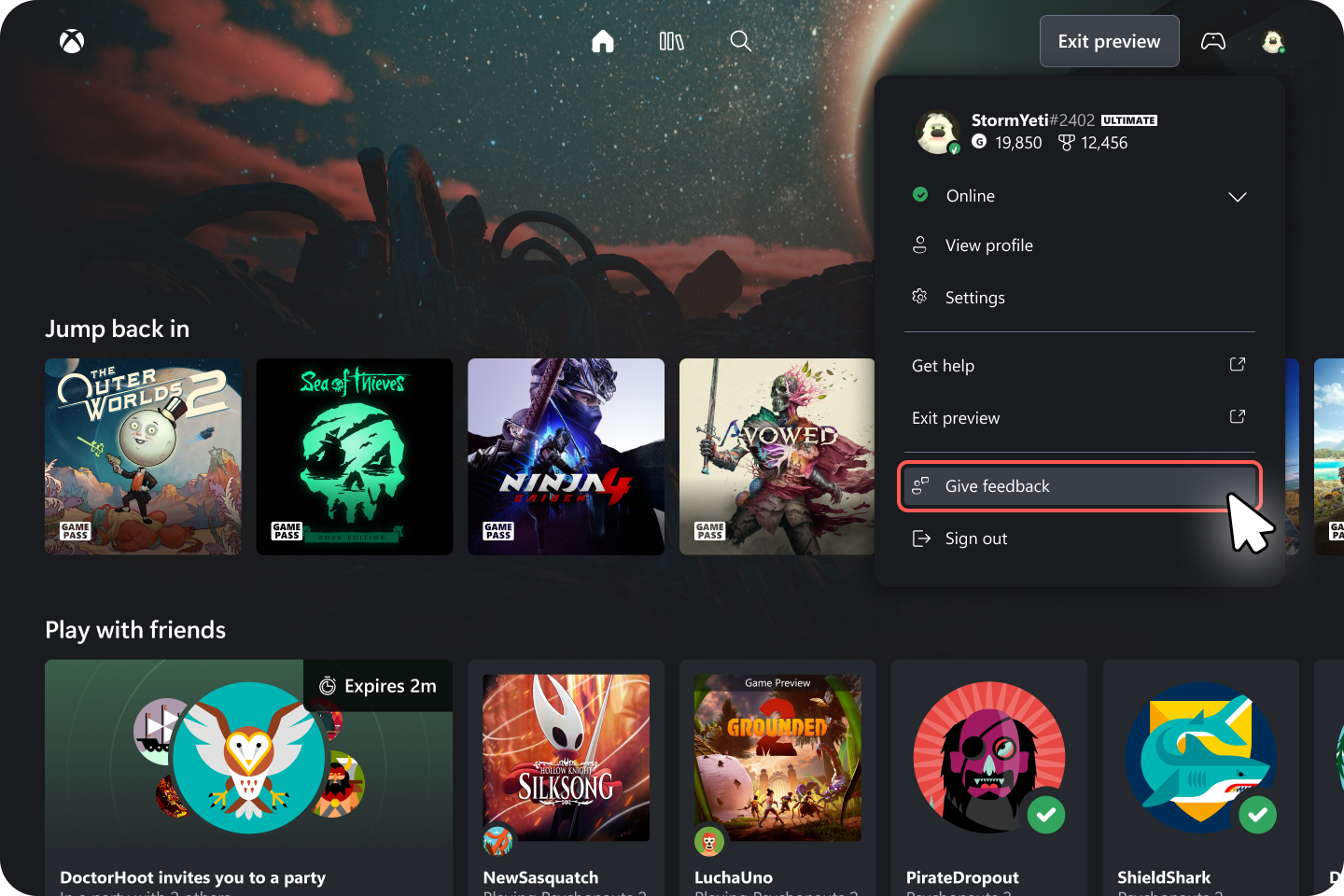
- Profile Button
- Select the profile icon in the top right and in the drop-down menu, select “Give Feedback
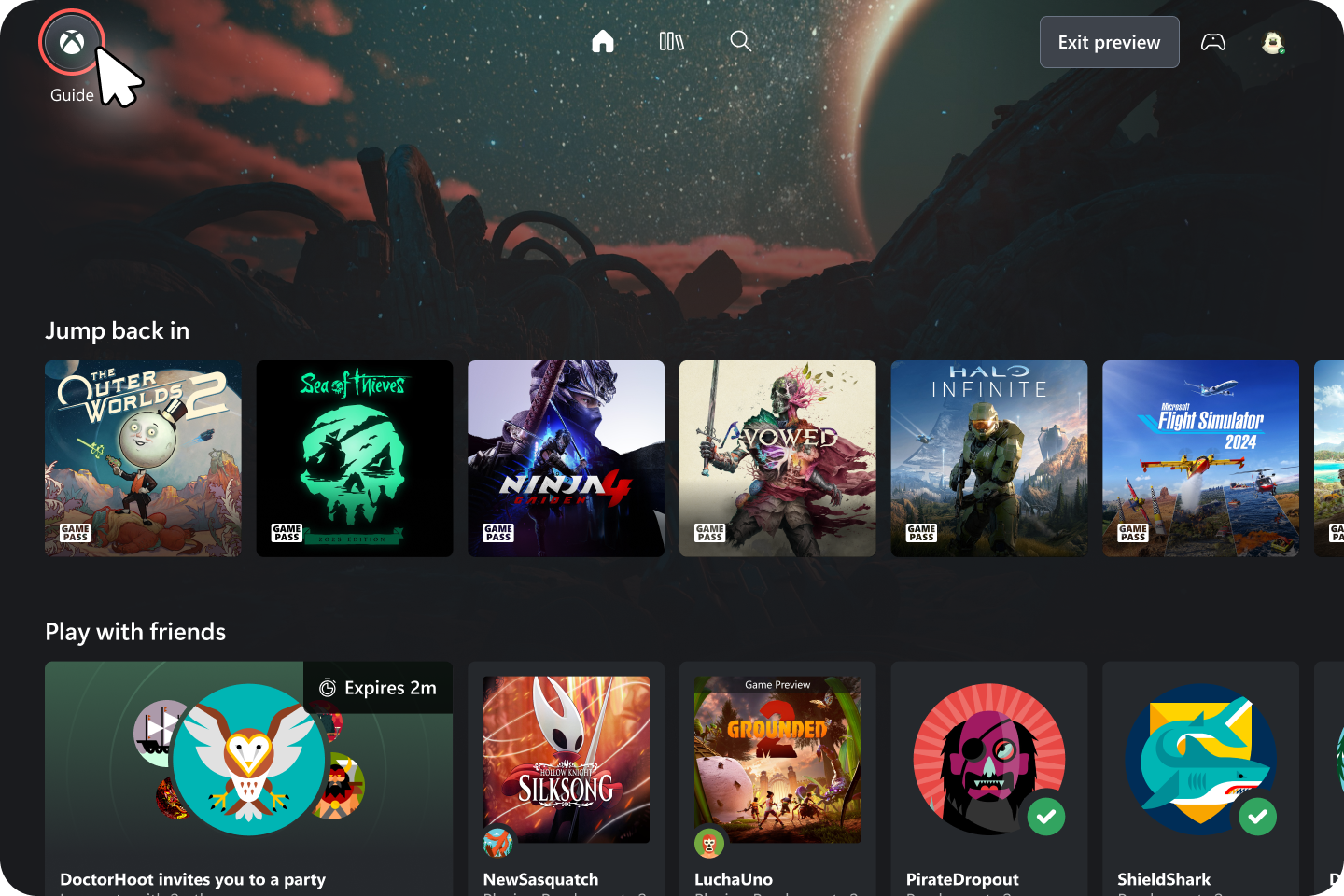
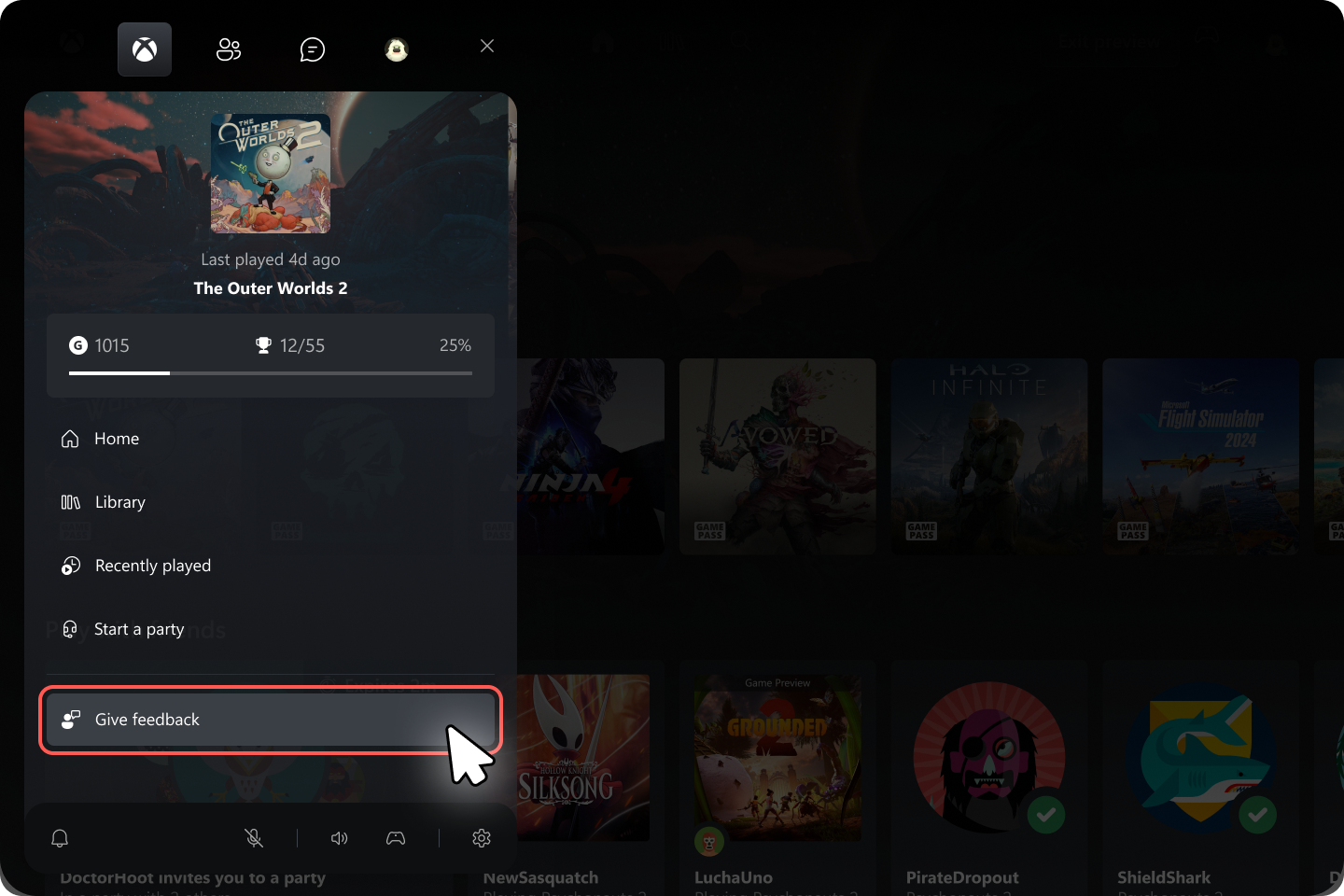
- Xbox Web Guide
- Open the Guide by pressing the Xbox button on your Xbox controller or pressing the Xbox icon in the top left corner and selecting Give Feedback.
Thank you for being part of Xbox Insiders. We can’t wait to hear what you think.
— The Xbox Experience Team
How to Get Xbox Insider Support and Share Your Feedback
We want to thank all the Xbox Insiders for the feedback you share with us. If you’re an Xbox Insider looking for support, please join our community on the Xbox Insider subreddit, where official Xbox staff, moderators, and fellow Xbox Insiders are there to help. We recommend adding to threads with the same topic before posting a brand new one. This helps us support you the best we can! We’re grateful to our Insider community for the helpful feedback you provide, it continues to shape the future of Xbox.
For more information on the Xbox Insider Program, follow us on Twitter at @XboxInsider and keep an eye on this blog for all the latest news.
Other resources:
For more information: follow us on X/Twitter at @XboxInsider and this blog for announcements and more. And feel free to interact with the community on the Xbox Insider SubReddit.